A Wish List is a parking place for items you have found in the store that you would like to purchase some day, but not right now. You can move items back and forth between your Shopping Cart and your Wish List. Your Wish List is stored in a cookie on the computer you are using when you add an item to your Wish List and it is stored on our website IF YOU ARE LOGGED INTO YOUR ACCOUNT. You should log into your account prior to adding any items to your Wish List so that you are certain to retain these items in future sessions.
Wish List Location
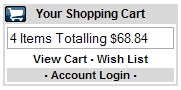
Your shopping cart is located on your screen in the upper right hand corner of the store. It is 'Always On'. It displays the quantity of items and the dollar amount of the items in your cart, a VIEW CART link, a WISH LIST link and an ACCOUNT LOGIN link. The total of the merchandise in your cart is displayed in real time. Click the WIST LIST link to view the contents of your WISH LIST.
Adding Items
Log into your account. Click the ADD TO MY WISH LIST button for any item and it is added to your WISH LIST. You will be directed to a view of your Wish List items.
Removing Items
Log into your account. Click the VIEW WISH LIST link on your account administration page or click the Wish List link beneath the Shopping Cart in the store. The next page will show you a detailed view of the items in your Wish List. Click the REMOVE link for the item you wish to remove.
Buying items in your Wish List
Click the MOVE TO link when viewing your Wish List and the item will be moved to your Shopping Cart.
Sharing your Wish List
Your Wish List is not designed to be shared with others. If you would like to create a list of items you can share with others use our Gift Registry.
Troubleshooting
Your browser must support JavaScript and cookies. Both JavaScript and cookies must be enabled to use any shopping functions.
To shop in this store you must have cookies enabled.
To enable cookies in Internet Explorer 6+ click Tools->Internet Options->Privacy->Default or move slider to HIGH Level.
To enable cookies in Internet Explorer 5+ click Tools->Internet Options->Security->Default Level.
To enable cookies in Netscape 6+ go to Edit->Preferences->Privacy&Security->Cookies and select 'Enable all cookies' or 'Enable all cookies for the originating web site only'.
To enable cookies in Netscape 4+ go to Edit->Preferences->Advanced and select 'Accept all cookies' or 'Accept only cookies that get sent back to the originating server'.
Users of old browsers may want to try the lastest version from Microsoft, or Netscape. .
Mac users - some JavaScript errors have been reported using the Netscape browser. Using a Microsoft Internet Explorer for Mac browser will resolve the problem.
If the ADD TO MY WISH LIST button still does not work.
You may be experiencing problems because your browser has 'cached' pages in the online store. To ensure that you are viewing the most recent version of the online store, please delete Temporary Internet files and click the REFRESH button. Alternately you could choose to change your Temporary Internet Files Setting to Check for newer versions of stored pages: "Every visit to the page".